Getting Started
Installation
Download the latest version of Tabular Editor 3 from our downloads page.
We recommend the MSI 64-bit installer for most scenarios. Once downloaded, double-click the MSI file and complete the installer pages.
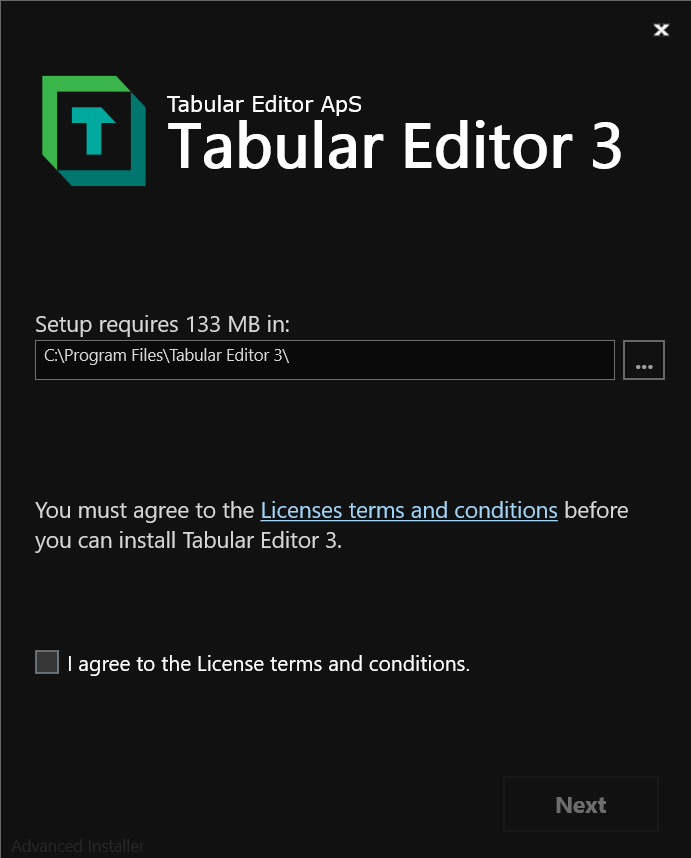
Prerequisites
None.
System requirements
- Operating system: Windows 10, Windows 11, Windows Server 2016, Windows Server 2019 or newer
- Architecture: x64, ARM64 (native from 3.23.0)
- .NET Runtime: .NET Desktop Runtime 8.0
See the .NET supported OS policy for current Windows versions supported by each runtime.
Activating your installation
Tabular Editor 3 is commercial software. Visit our home page for pricing details and purchase options. If you have not previously used Tabular Editor 3, you are eligible for a free 30-day trial.
The first time you launch Tabular Editor 3 on a new machine, you are prompted to activate the product.
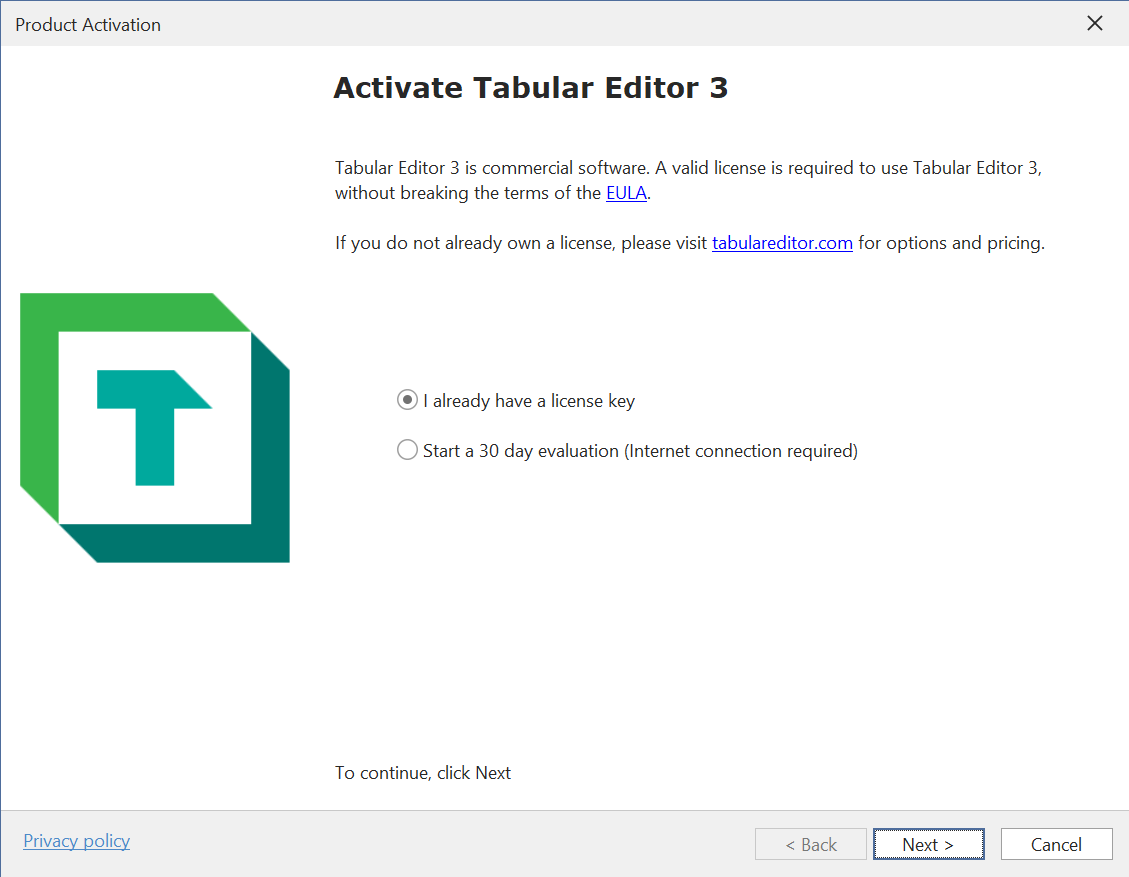
Activating using an existing license key
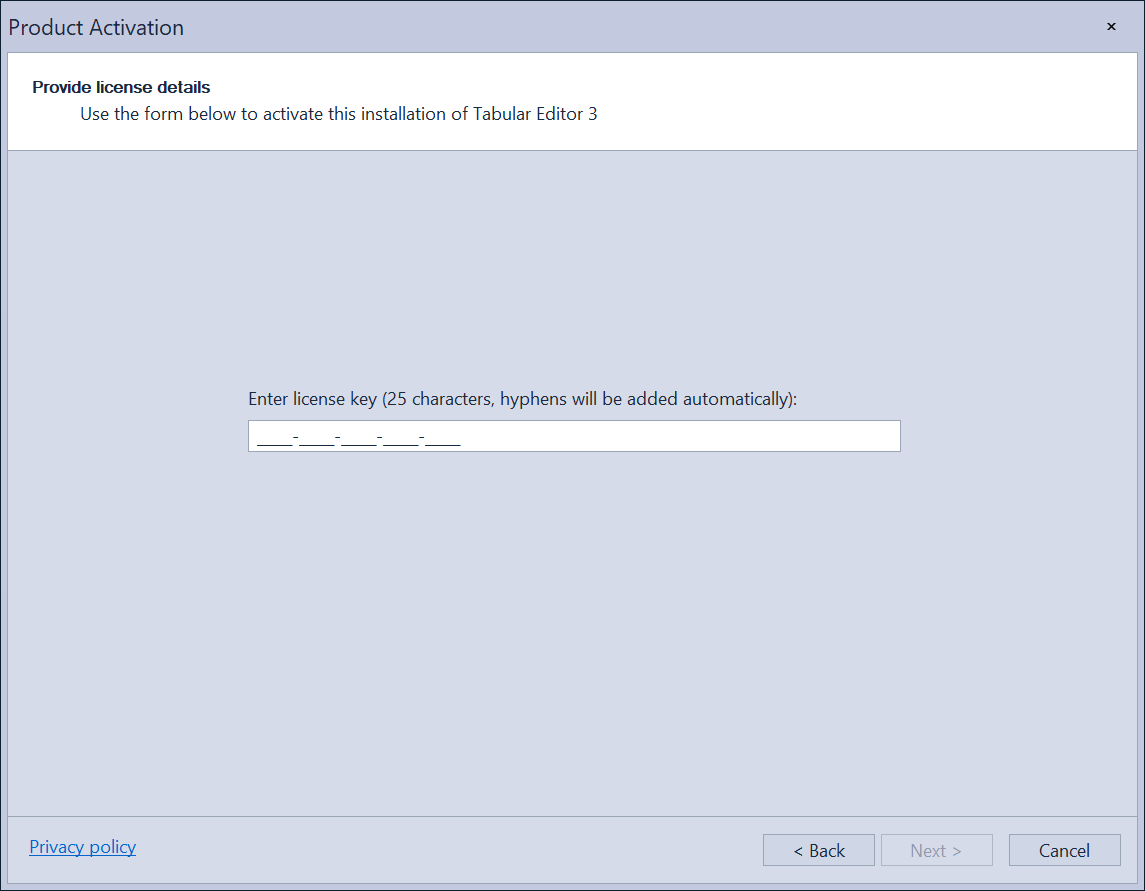
Once you purchase a license for Tabular Editor 3, you receive an e-mail with a 25-character string which is your license key. When prompted, enter the license key and click Next > to activate the product.
Note
For multi-user license types, you also enter your e-mail address in addition to the license key. Tabular Editor 3 prompts you to do so when the license key represents a multi-user license.
Tabular Editor 3 installations are activated per user. If multiple users share the same machine, each user activates the product on their own Windows user profile.
Windows account vs Power BI / Entra account
The Windows account on which Tabular Editor 3 is installed is independent from the Microsoft Entra account used to authenticate against a Power BI / Fabric workspace.
- License activation is stored in the Windows Registry under
HKEY_CURRENT_USERof the Windows user that activated the product. The license is not tied to any cloud identity. - Workspace authentication happens at connection time in the Load Semantic Model from Database dialog. You sign in with the Microsoft Entra account that has permission on the workspace.
You do not need to launch Tabular Editor 3 with Run as under a different Windows account just because you use a separate Entra account (for example a non-mail-enabled admin account) to manage the Power BI workspace. Launch Tabular Editor 3 under your normal Windows account, activate it with your license key under that account, and provide your admin Entra credentials in the connection dialog.
For details on how Tabular Editor authenticates to the XMLA endpoint and how to pick the right authentication mode (for example Microsoft Entra MFA when your Windows login does not match your Power BI account), see XMLA / Analysis Services connectivity.
Requesting a trial license
If you have not used Tabular Editor 3 before, you are eligible for a free 30-day trial. When you choose this option, you are prompted for an e-mail address. We use the e-mail address to validate whether you have an existing activation of Tabular Editor 3.
Note
Tabular Editor ApS does not send unsolicited e-mails or forward your e-mail address to third parties when you sign up for a 30-day trial license. View our Privacy Policy for more information.
Changing a license key
When Tabular Editor 3 is activated, you change your license key in the Help menu by choosing About Tabular Editor.
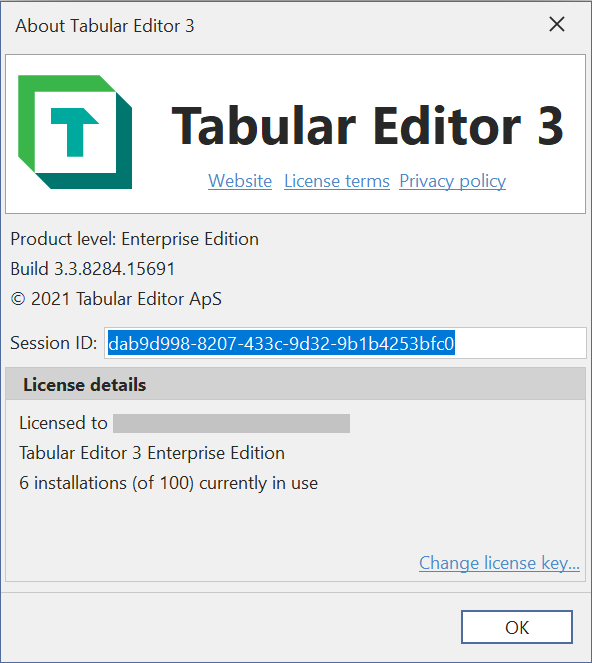
In the dialog, select Change license key. This option is only available when no model is loaded in Tabular Editor. If a model is open, close it under File > Close model. Once you click Change license key, Tabular Editor prompts you whether you want to remove the current license:

If you accept, the current license is removed and you re-enter a license key to use the product.
Important
Once a license key is removed, the product is not usable by the current user on that machine until a new license key is entered.
Post-install configuration
Tabular Editor 3 provides many configuration options. The default settings are sufficient for most development scenarios, but review the options below.
Check for updates on start-up
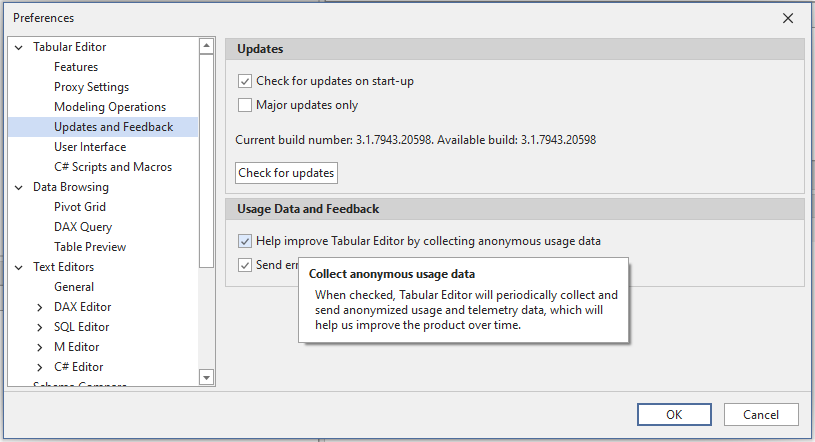
By default, whenever Tabular Editor 3 is launched, the tool checks online to see if a newer version is available. You control how this update check is performed under Tools > Preferences > Updates and Feedback.
Note
Always use the latest version of Tabular Editor 3. Our support team assumes you are on the latest version before submitting a bug report.
Opting out of telemetry collection
Tabular Editor 3 collects anonymous usage data and telemetry, which helps us improve the product. You opt out at any time by launching Tabular Editor 3 and navigating to Tools > Preferences > Updates and Feedback. Uncheck the Help improve Tabular Editor by collecting anonymous usage data checkbox to opt out.
Proxy settings
If you are on a network with limited internet connectivity, specify the address, username, and password of a proxy server under Tools > Preferences > Proxy Settings. This is required before Tabular Editor 3 can use any features that rely on outgoing web requests. Specifically:
- Update checks
- Product activation
- DAX Formatting
- Download of Best Practice Rules from external URLs
Tip
The proxy settings can at times interfere with authentication dialog boxes or other external prompts. Try switching the proxy setting between System and None, then close and reopen Tabular Editor 3 to verify.
Other preferences
Tabular Editor 3 contains many other settings for controlling application behavior. To learn more, see Controlling preferences.
Advanced scenarios
For manual (no-internet) activation, registry-based license management, silent deployment, and Enterprise seat administration, see Advanced installation and activation.